Grow a Garden Thumbnail Maker— update covers for garden and harvest games
A Grow a Garden thumbnail does one job: make the newest crop unmissable. Upload your harvest screenshot, place a giant yellow title over the dark green backdrop, and export at1920×1080, the wide 16:9 spec in Roblox'sasset documentation. The editor starts on the Garden Leaf gradient and a warm Arial Sun title style so the first frame already reads as a garden update.
Download your thumbnail as a PNG at 1920×1080 — switch to 1280×720 for a YouTube cover. Roblox and YouTube specs: Roblox thumbnail size guide.
How garden update covers work
In garden games players click to see the new item. A clear shot of the latest harvest beats a stylised render of a character.
Weights, quantities and prices are the most legible hooks this audience reads. One large number is enough.
The category defaults to leaf green covers with warm yellow titles, and matching the convention means instant category recognition.
Title patterns for update days
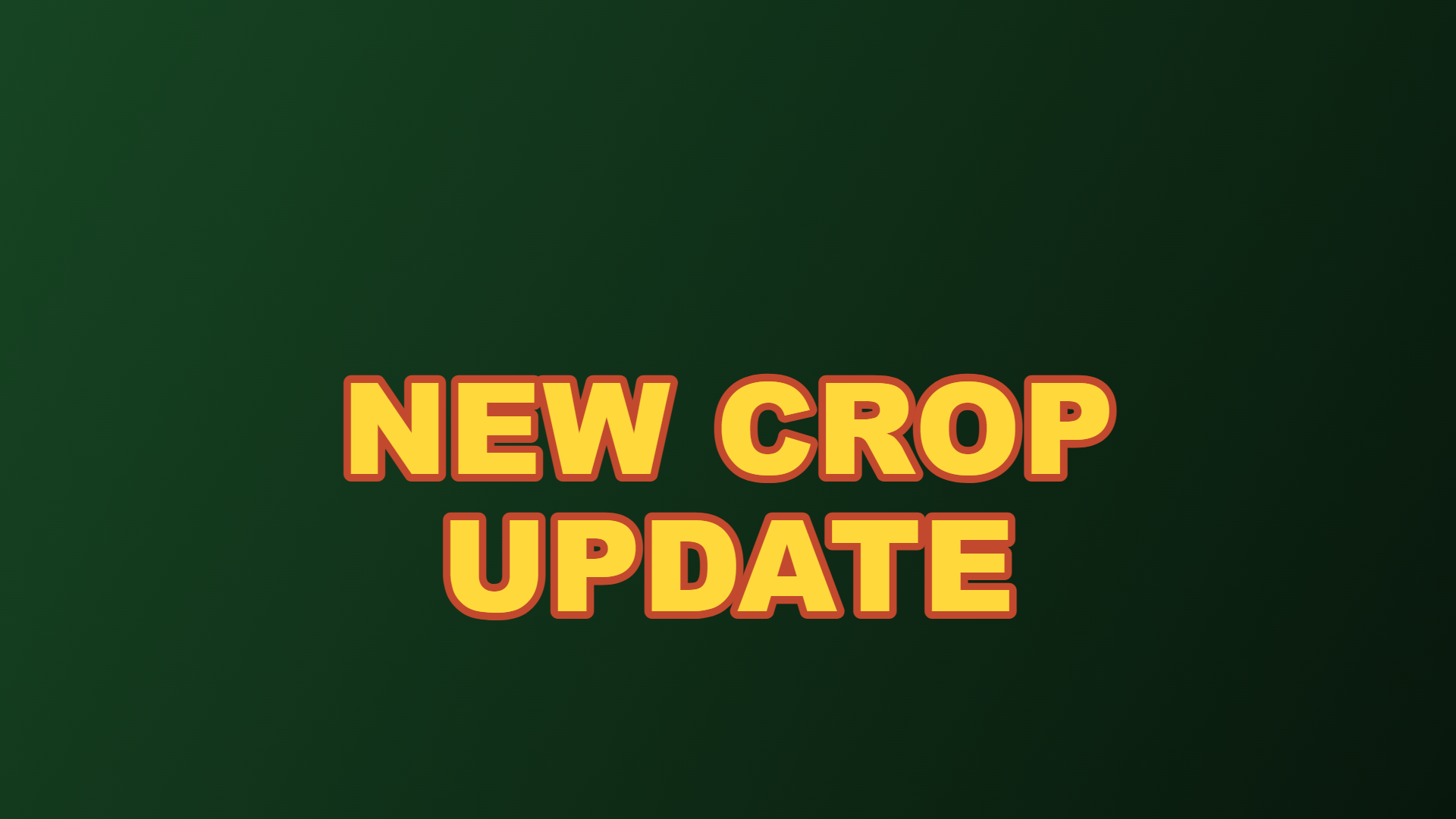
The safest update title in the genre. It promises exactly what an update delivers.
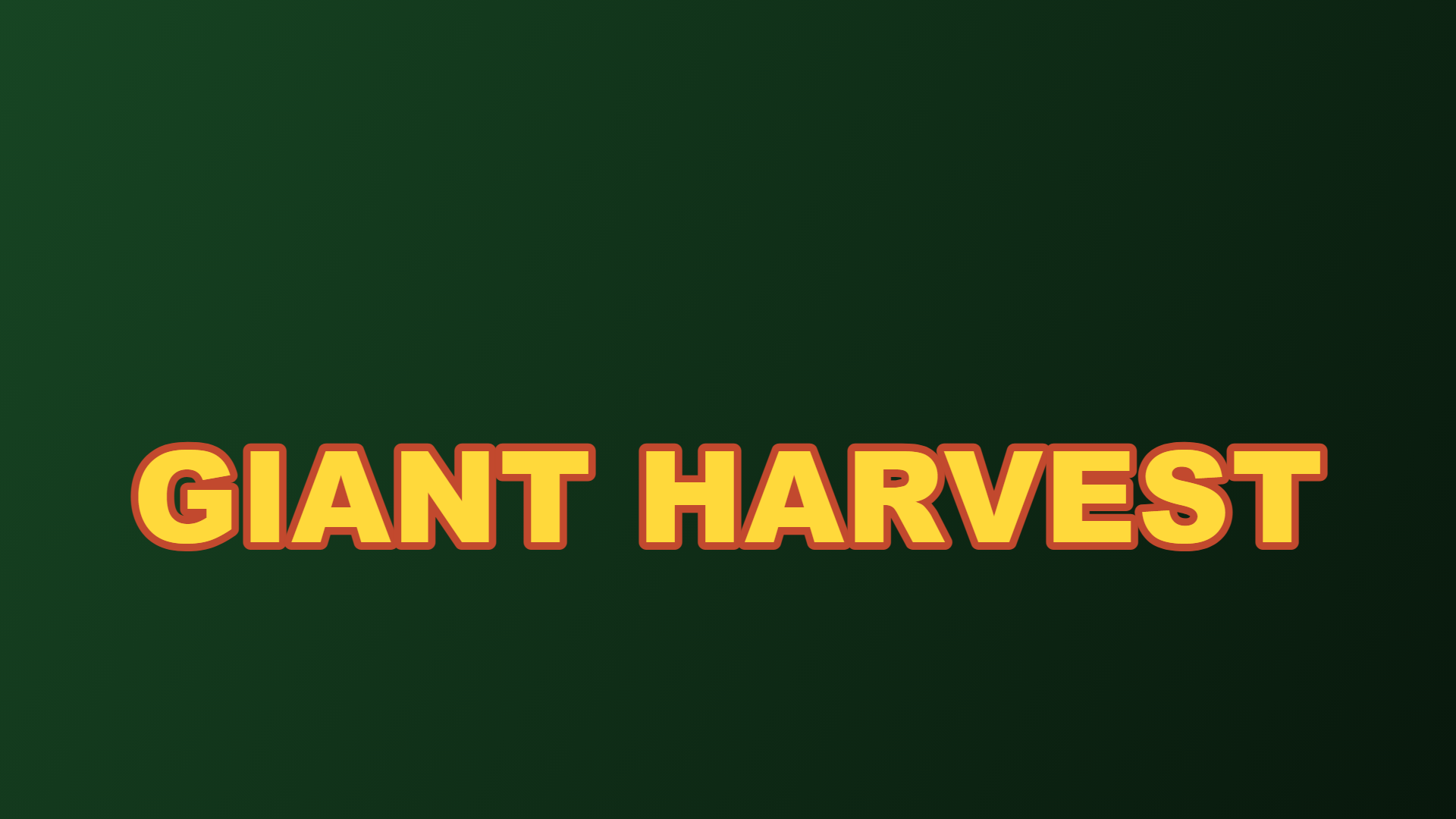
Scale is the whole fantasy of the game; the title states the payoff without a number that can date.
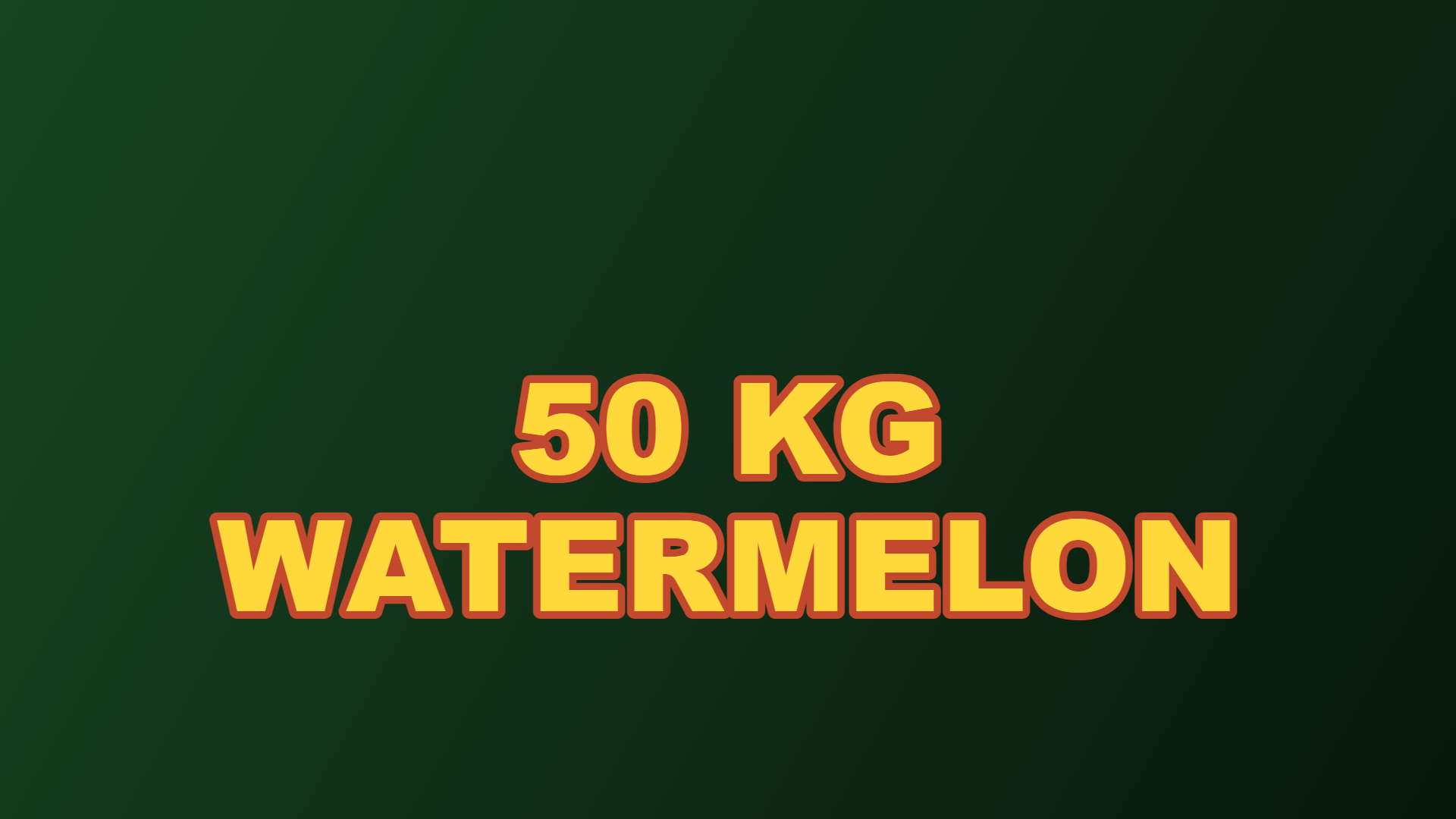
Replace X with a real number from your plot. Specific beats huge, because specific looks earned.
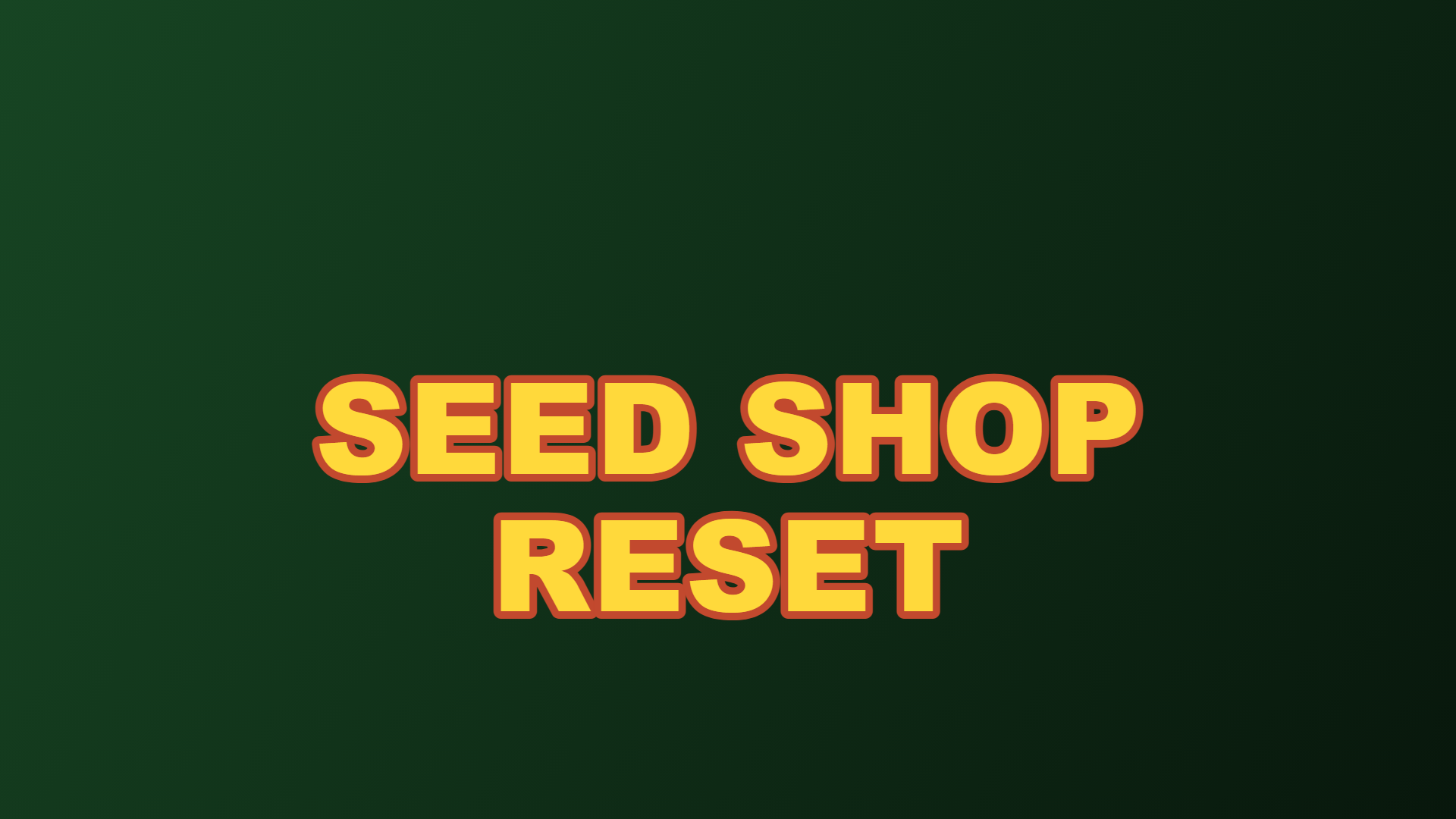
For economy updates. Returning players scan for shop and reset language specifically.
Six example Grow a Garden covers
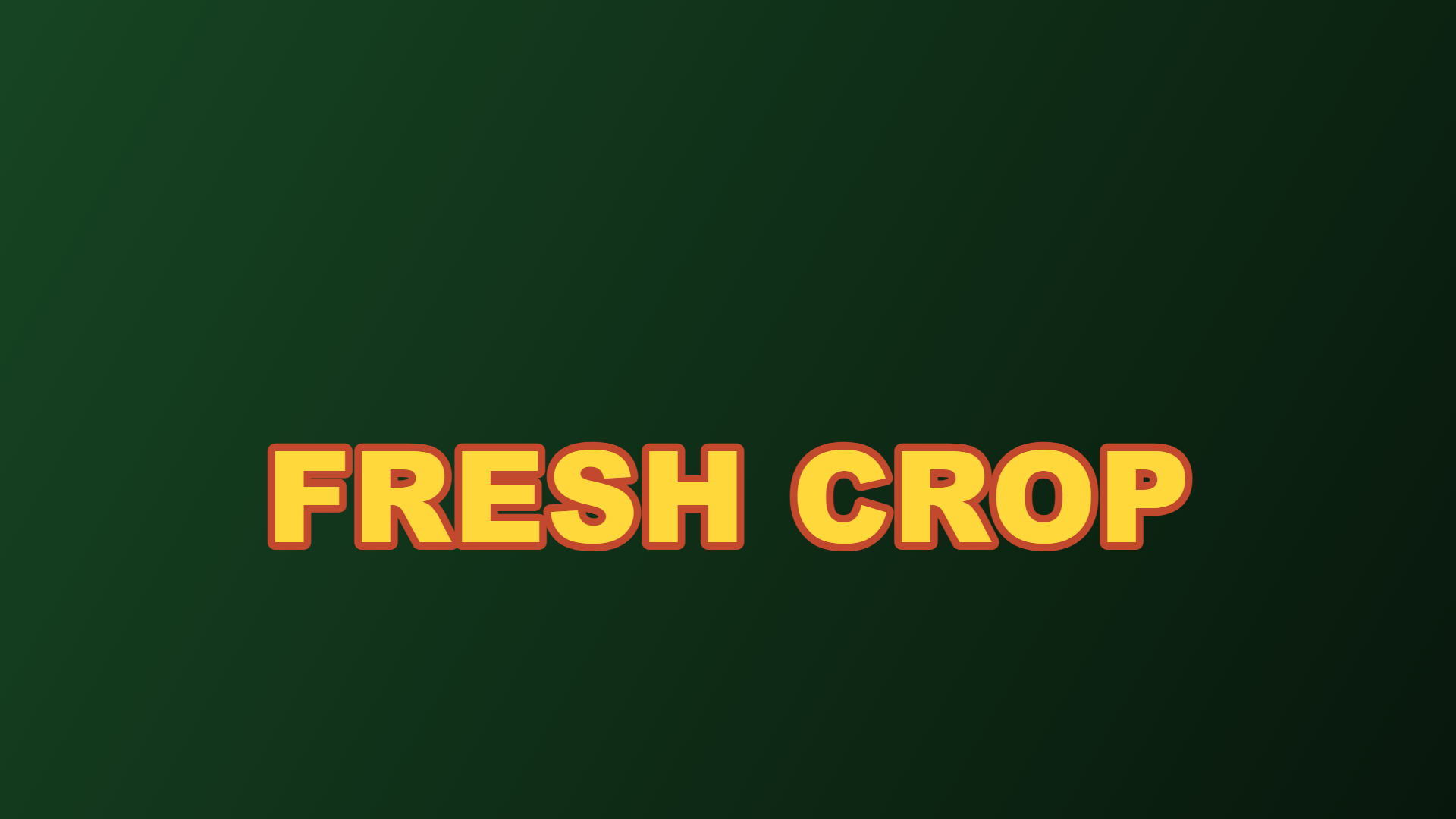
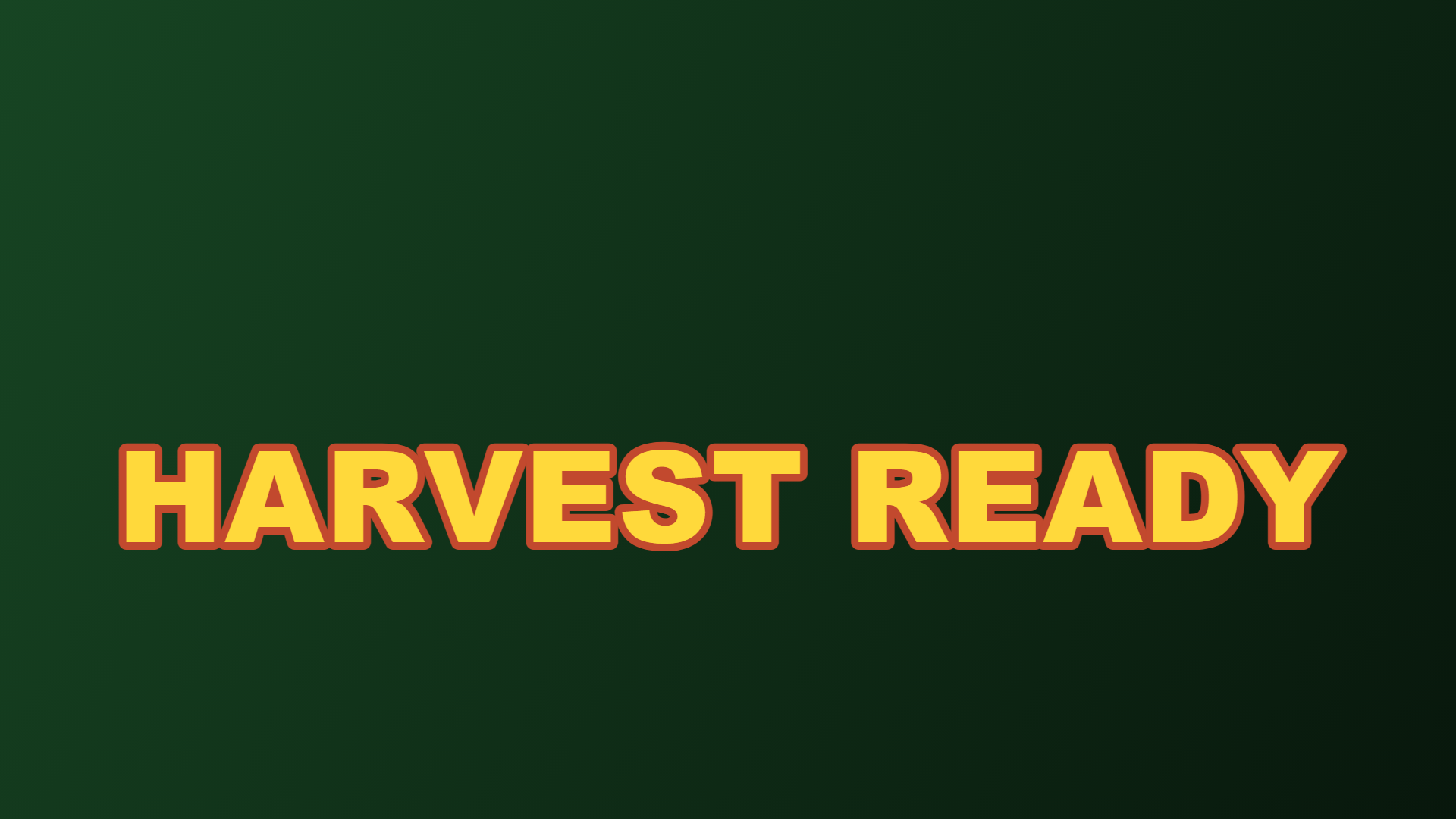
Real exports from the editor above: the Garden Leaf backdrop with six title treatments. Each one is a composite of your own harvest screenshot, a headline and a colour backdrop — nothing is drawn for you. When the crop is the story, the Grow a Garden thumbnail should say it in five words or fewer. Covering a different game? Thegaming thumbnail makeris the hub that opens the same editor with another preset.
Where a garden thumbnail has to land
Garden updates are mostly consumed by returning players checking for new crops, not by strangers. That changes the cover: you are flagging a change to people who know the previous shop inventory, so the new item needs to be the most prominent thing in frame.
- ▸The "recently updated" rail, where your cover competes with other places that updated the same week.
- ▸Player homepages and recommendations after a gardening session.
- ▸Your own group announcements, where the image previews the patch notes.
- ▸Share links on trading communities, where crop names are read as currency information.
Four steps from screenshot to publish
The editor above handles the whole edit locally.
- 1Screenshot the new crop at its biggest or rarest state.
- 2Keep the Garden Leaf backdrop or switch it if your crop is green-on-green.
- 3Write the update in five words or fewer, leading with NEW or a real number.
- 4Export 1920×1080 and swap the thumbnail before the update unlocks.
Typical garden cover mistakes
Flat performance on update posts usually traces to one of these.
- !Showing a common crop when the update is about a rare one. The frame must answer "what is new?" instantly.
- !Stacking multiple numbers (weight, price, count). A single figure is read; three are ignored.
- !A green title over a green screenshot. Yellow or cream outlines exist specifically to prevent this.
- !Recycling last update's cover with swapped text — regulars notice and read it as no real update.
›What size should a Grow a Garden thumbnail be?
1920×1080 at 16:9, the wide Roblox thumbnail spec. The tool opens on that canvas; you can also export a 1280×720 YouTube version or a 512×512 icon from the same layout.
›Does this generate crops or images with AI?
No. You supply the screenshot; the tool only places your text, stickers and backdrop. Nothing is generated, so the cover never promises an item that is not really in the game.
›Can I put the new crop name in the title?
Yes, and you usually should, as long as it exists in your build. A crop name with a number ("50 KG WATERMELON") is more clickable than generic hype language.
›Should I change the thumbnail for every small update?
Only when something visible changes — a crop, an event, a shop reset. Swapping covers for invisible balance tweaks trains regulars to ignore your updates.
›Is it really free with no watermark?
Yes. No account, no watermark, and your screenshot never leaves the browser. Free is 1 export a day; Pro ($4.99/month) only removes the daily limit and exports every size at once.
More makers
Same editor, different opening preset — every page below drops you into a canvas already set up for that game's colours, export size and title patterns.
1920×1080 covers, no watermark
One editor, a preset for every game
How the no-model workflow works
Upload, moderation and Studio steps
Loud meme titles for collection games
FPS duel frames
Fruit showcases and update art
Dark permadeath palettes
Motion-first platformer covers
Square 512×512 place icons
512×512 plus the 150×150 display trap
How an upload becomes an rbxassetid number
Quick facts
- Export sizes
- 1920×1080 for a Roblox game thumbnail, 1280×720 for YouTube, 512×512 for a Roblox game icon — all three presets live in the editor.
- File format
- PNG by default. Anything over 2.8 MB is re-encoded as JPG so the file stays under the 3 MB upload limit Roblox documents for game thumbnails.
- Where the image goes
- Nowhere. Decoding, editing and encoding all run inside the browser tab — the site has no upload endpoint.
- Account and watermark
- No sign-up and no watermark. one free export a day, then Pro.
- Batch behaviour
- Thumbnails are exported one at a time. A second button exports three backdrop variants of the same layout in one pass.
- How the artwork is made
- Text, stickers and gradient backdrops are drawn with the canvas 2D API. No generative model is involved, and your own screenshot stays the base layer.
These facts are read from this site's own export code; the 3 MB figure is quoted from Roblox's own upload documentation.